Movie/series row scrolling fixed on Safari (net22.cc in browser only). If you used DODO Webview — already working perfectly, no action needed.
NetMirror on iPhone & iPad via DODO Webview
Stream NetMirror's full library — 500K+ movies, web series and live TV from Netflix, Prime, Disney+ Hotstar — directly on your iPhone or iPad. No jailbreak, no Apple ID risk, no signup. Just install DODO Web View from the App Store and load the URL inside it.
netfree2.cc inside DODO. URL changes monthly — always-current URL here.
Why iOS Needs a Webview Wrapper
Apple's App Store Review Guidelines prohibit apps that aggregate copyrighted streaming content from other services. That is why NetMirror itself is not — and cannot be — a native iOS app. Instead, the iOS workaround uses a generic WebView wrapper called DODO Web View - TV Movies, listed on the App Store under "Entertainment" by developer "umer shabbir".
DODO Web View is a fully App-Store-reviewed app. Apple has approved it because, on its own, it does nothing — it is just a browser shell with a URL field and three toggles (Full Screen, Auto Rotation, HTTPS). What you load inside it is up to you. NetMirror's streaming URL happens to work beautifully inside DODO because the toggles enable the right viewing experience.
This approach is identical to how millions of users access region-locked or unofficial services on iOS. Other interchangeable apps that work the same way: iOSMirror, NetFree, and any HTML5 webview app. If DODO disappears from the store one day, just install the next equivalent and the same URL will load. See our NetMirror vs Netflix comparison for why this is necessary in the first place.
Works on
- iPhone 5s and newer (every modern iPhone)
- iPad — all generations from 5+
- iPad Air, iPad Mini, iPad Pro M-series
- iPod Touch 6th and 7th generation
- iOS 12+ (recommended iOS 14+)
Limitations
- No native offline downloads (browser cache only)
- 1 short ad on first daily launch (closes in ~20 sec)
- URL changes every 4–6 weeks (we publish updates fast)
- For full offline support → use Android APK
4 Steps to NetMirror on Your iPhone
Real screenshots from a fresh install. From App Store to first stream — about 3 minutes total.
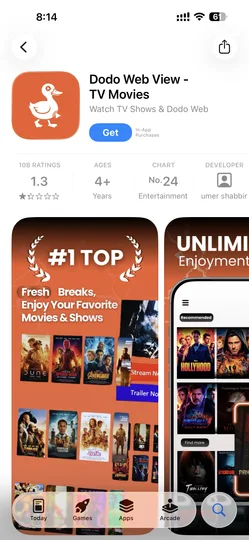
Install DODO Web View from App Store
Open the App Store on your iPhone or iPad and tap the direct link below — or search "Dodo Web View - TV Movies" by developer "umer shabbir". Free, App Store reviewed, 4+ rating. About 30 seconds.

Enter the current URL: netfree2.cc
Launch DODO Web View. In the URL field, type the current iOS URL — netfree2.cc (verified 2026-05-09). Enable the three toggles: Full Screen, Auto Rotation and HTTPS. Tap "Open WebView".
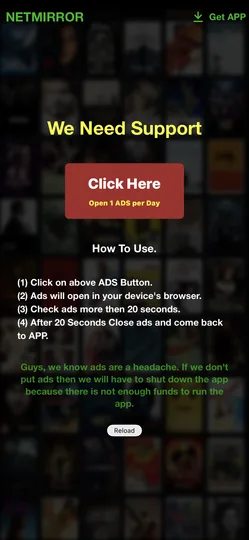
Tap the support ad once per day
On the very first launch each day, NetMirror shows a "We Need Support" screen with one Click Here ads button. Tap it (it opens an ad in your browser), wait ~20 seconds, then close that tab and return to DODO. The app stays ad-free for the next 24 hours.
Browse and stream
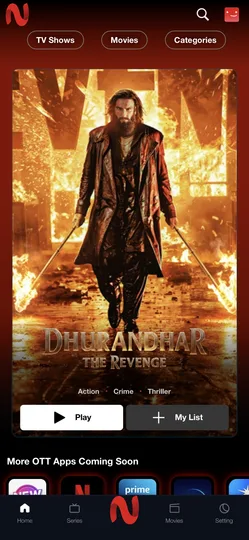
You are in. The full NetMirror library loads — TV Shows, Movies, Categories tabs at the top, featured banner with one-tap Play, plus 50+ OTT platform sections (Netflix, Prime, Disney+, Hotstar). No signup, no account, just stream.
Bookmark the URL page on your iPhone home screen for one-tap access whenever the URL rotates.
Same Premium Library — Optimised for iPhone
Multi-Language Audio
English, Tamil, Telugu and Hindi tracks on the same Hollywood title — rare even on paid Netflix India. The biggest reason Indian iPhone users switch.
AirPlay to Apple TV
Tap AirPlay in Control Centre and beam any video to your Apple TV, HomePod or AirPlay 2 speaker. Works inside DODO with no extra setup.
Picture-in-Picture
iOS 14+ supports PiP for any HTML5 video. Tap PiP, switch apps, keep watching in a floating window — perfect for multitasking.
4K UHD + HDR10
iPhone 12 Pro and newer get 4K HDR streaming on supported titles. Older iPhones automatically pick the best resolution for their screen.
Custom Player Controls
10-second skip, episode navigation, audio language switcher, subtitle picker and 0.5x to 2x playback speed — all inside DODO.
Add Working URL to Home Screen
Save the /netmirror-new-url-working/ page as an iPhone home-screen icon. One tap → always know today's URL.
Common iOS Issues — Quick Fixes
"Cannot load page" error
The current URL has changed. Get the latest from /netmirror-new-url-working/. Also try toggling HTTPS off in DODO settings.
Video stops when screen locks
Enable Picture-in-Picture before locking. Tap PiP icon in player, audio continues even when phone is locked.
DODO Webview not on App Store
Apple sometimes pulls DODO temporarily. Use iOSMirror or NetFree as backup — same URL works.
AirPlay not working
Make sure your Apple TV and iPhone are on the same Wi-Fi. Update DODO to latest version. Try restarting both devices.
Subtitles not showing
Tap the player gear icon → Subtitles → pick your language. iOS sometimes defaults to off — toggle on manually.
Browser flagged as unsafe
False positive — the URL is verified by us before publishing. Tap "Visit anyway" and proceed. See our VirusTotal report on the homepage.
Still stuck?
NetMirror on Other Devices
Your account-free streaming follows you across every device. Pick your platform for the dedicated guide.
iPhone & iPad FAQ
Everything users ask about running NetMirror on iOS via DODO Webview.
Is NetMirror available on the Apple App Store?
Is DODO Webview safe to install on my iPhone?
Do I need to jailbreak my iPhone?
Which iOS versions does this work on?
Why does the URL change every few weeks?
Do I need to sign up or create an account on iOS?
Can I download movies for offline viewing on iPhone?
Does AirPlay work? Can I cast to Apple TV?
The video stops playing when I lock the screen — fix?
My DODO Webview shows "Cannot load" — what now?
Is using NetMirror on iPhone legal?
How do I uninstall if I no longer want NetMirror?
Three taps from App Store to streaming
Install DODO Web View from the App Store, paste netfree2.cc, and start watching. Always-current URL on the dedicated tracker page.