DODO Webview iOS Setup — Complete Guide for NetMirror on iPhone (2026)
Step-by-step guide to set up DODO Web View on iPhone/iPad for NetMirror. Install from App Store, enter URL, enable toggles, troubleshoot common issues.
Quick Summary
iOS does not allow streaming aggregator apps in the App Store. The workaround used by millions of NetMirror iOS users is DODO Web View — TV Movies, a generic webview wrapper app that loads any URL inside a fullscreen browser shell. Install DODO from the App Store, enter the current NetMirror streaming URL, enable three toggles, tap Open WebView. Total time: 3 minutes.
What is DODO Webview?
DODO Web View - TV Movies is a free third-party app on the Apple App Store, developed by "umer shabbir". It is essentially a WebView — a fullscreen browser shell with three configuration toggles (Full Screen, Auto Rotation, HTTPS) and a URL field. You enter any URL and DODO loads it like a regular browser, but in a clean fullscreen view that resembles a native app.
DODO is reviewed and approved by Apple — it is fully legitimate, not jailbreak, not modified iOS. Apple has approved it because, on its own, it does nothing — it is just a browser shell. What you load inside it is your choice. The NetMirror streaming URL happens to work beautifully inside DODO because the toggles enable optimal viewing.
Direct App Store link
apps.apple.com/in/app/dodo-web-view-tv-movies/id6756433195 (App ID: 6756433195)
Step-by-Step Setup (with screenshots)
Step 1 — Install DODO Web View from App Store
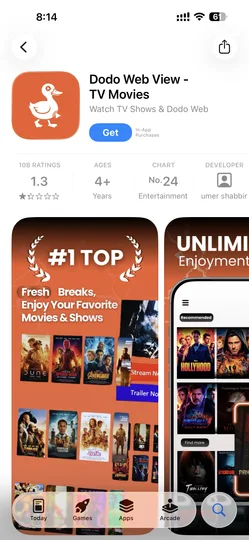
- Open the App Store on your iPhone or iPad
- Tap the Search tab (bottom right)
- Search "Dodo Web View - TV Movies"
- Look for the listing by developer "umer shabbir" (4+ rating)
- Tap GET → Install (use Face ID / Touch ID to confirm)
- Wait ~10 seconds for the app to download
Or use the direct link above — opens straight to the listing.
Step 2 — Get the current iOS streaming URL
The streaming URL changes every 4-6 weeks due to ISP blocks. Always check our working URL tracker for today's verified URL.
As of 2026-05-09, the current iOS URL is: netfree2.cc
Step 3 — Open DODO, enter URL, enable toggles

- Launch DODO Web View from your home screen (orange duck icon)
- You see a clean URL input field at the top, three toggles in the middle, and two buttons at the bottom
- Tap the URL field. Type or paste:
https://netfree2.cc - If you copied the URL from this page, the keyboard's "Paste" button works
Step 4 — Enable the three toggles
DODO has three toggles. Enable all three for the best NetMirror experience:
- Full Screen — hides the iOS status bar so videos play immersively
- Auto Rotation — lets the app rotate to landscape when you tap Play on a video
- HTTPS — uses encrypted connection (the streaming URL is HTTPS-capable)
Step 5 — Tap "Open WebView"
DODO loads the NetMirror site in fullscreen. You will see the "We Need Support" screen with the "Click Here — Open 1 ADS per Day" button on first launch each day.
Step 6 — Click the support ad once per day
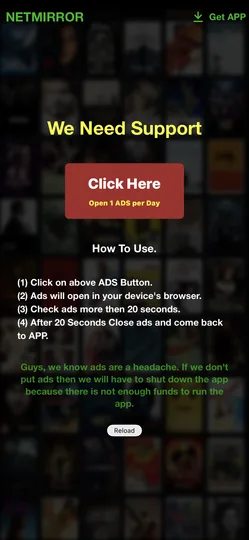
- Tap "Click Here" on the support screen
- An ad opens in your browser (Safari)
- Wait ~20 seconds (count to 20, no need to actually watch)
- Close the Safari tab and switch back to DODO Web View
- Tap "Reload" on the support screen
- NetMirror's streaming home appears — TV Shows / Movies / Categories tabs at top
Step 7 — Stream
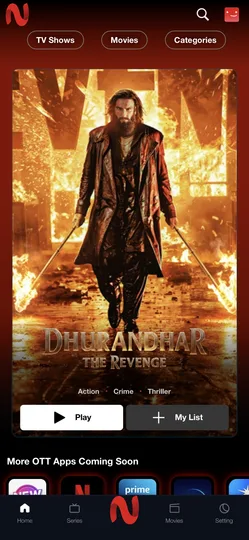
Browse content. Tap any movie or show, tap Play. The video plays in landscape automatically. Pinch to zoom, double-tap for skip controls, tap once for play/pause overlay.
Optional — Add to Home Screen Shortcut
For one-tap access, create a Home Screen shortcut to DODO Web View pre-loaded with the URL:
- Open Safari (not DODO)
- Visit our working URL tracker page
- Tap the Share button → Add to Home Screen
- Name it "NetMirror URL" → Add
Now whenever the URL changes, tap that shortcut to see the latest URL, copy it, paste into DODO. Faster than typing every time.
Common Issues and Fixes
"Cannot load page" error
The URL has likely changed. Check our working URL tracker for the latest URL. Also try toggling HTTPS off in DODO settings — some month's URL is HTTP only.
Video stops when screen locks
iOS pauses background video for non-music apps by default. Workaround: enable Picture-in-Picture before locking. Tap PiP icon in the player → video shrinks to a floating window → audio continues even when app is in background or phone is locked.
DODO Web View not on App Store
Apple sometimes pulls DODO temporarily for review. If it is not available, search for these alternatives — they work the same way:
- iOSMirror — popular DODO alternative, identical functionality
- NetFree — another webview wrapper
- Web Video Cast — broader-purpose web browser, also works
AirPlay not working
Make sure your Apple TV and iPhone are on the same Wi-Fi. Open Control Centre (swipe down from top-right), tap the AirPlay icon, select your Apple TV. If you don't see AirPlay, restart both devices.
Subtitles not showing
Tap the player gear icon → Subtitles → pick your language. iOS sometimes defaults to off — toggle on manually for the language you want.
Browser flagged URL as unsafe
DODO uses Apple's WebKit, same as Safari. If you see an "unsafe" warning, the streaming URL probably uses HTTP instead of HTTPS this month. Toggle HTTPS off in DODO settings and reload.
Why Not Just Use Safari?
You can use Safari directly, but DODO is purpose-built for fullscreen video viewing — no Safari toolbars covering the player, no accidental tab swipes, native landscape rotation that Safari sometimes fights. DODO is also faster to launch and pre-configured for the right toggles. Most iOS NetMirror users find it more polished.
FAQ
Is DODO Web View safe?
Yes. DODO is App Store reviewed and approved by Apple. It is just a browser shell — it cannot access your iCloud, Apple ID, photos or contacts. The app itself contains no malware (Apple's review process catches that). What you load inside it (the streaming URL) is what matters.
Do I need to pay for DODO?
No. DODO Web View is free on the App Store. There is an in-app purchase option but it is not required for NetMirror.
Can I use this on iPad?
Yes. DODO Web View runs on iPhone, iPad and iPod Touch (iOS 12+). The iPad version has the same UI, just larger.
Does it work on the latest iOS?
Yes, DODO is updated regularly to support the latest iOS versions. Tested working on iOS 12 through iOS 18.
Can I save the URL inside DODO?
DODO remembers the last URL you typed, so you don't need to re-type it every launch. When the URL changes (every 4-6 weeks), update it once.
What if I want a different webview app?
Any iOS webview app works — iOSMirror, NetFree, Web Video Cast. The setup process is identical: install the app, enter the URL, enable toggles, open. Pick the one that suits you.